
Browser extension
Instachat Browser connects your Chrome profile to an AI app on your Mac, only while you allow it.
Tested on Google Chrome for macOS. Windows is not supported. No Instachat account is needed for local control.
What it does
It works with any app that supports MCP (Model Context Protocol). Once connected, that app can list your tabs, read a page, take screenshots, type, run page scripts, navigate, and open or close tabs, using the sessions you are already signed in to.
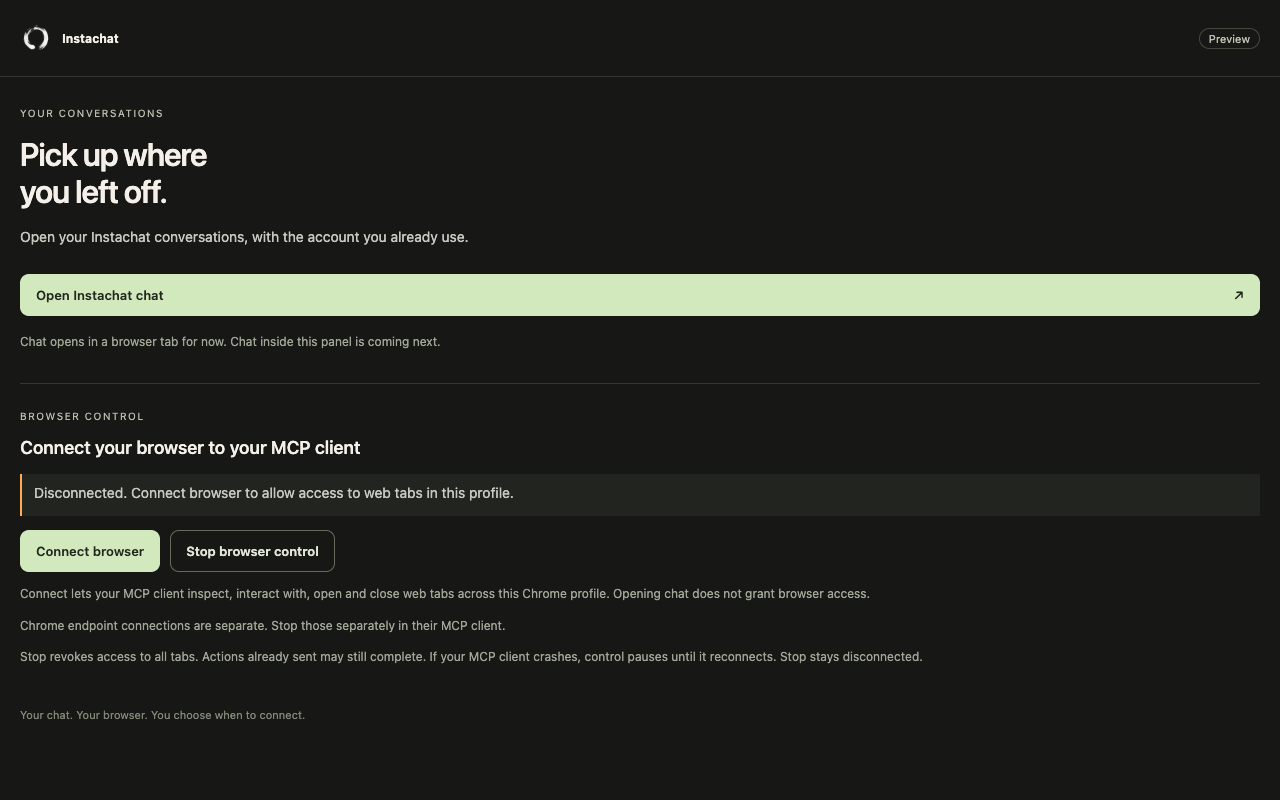
Set it up
- Install Instachat Browser by SoulfulAI from the Chrome Web Store once published. Its extension ID is
ehfpmbhfbpngbdgicmjdleghehknmmcb. - Install the signed Instachat Browser Bridge for macOS (download 0.5.0, Apple Silicon only), then run
instachat-browser-setupin Terminal. It connects to the store extension by default; use--extension-idonly for a different build you trust. - Open the extension and click Connect browser. Copy the pairing key and treat it like a password.
- Add the server entry from the
mcp.jsonthat setup prints to your AI app's MCP settings, paste the key in place of the placeholder, then restart that server. - Ask the app to list your tabs, then work with the one you choose.
Bridge download: instachat-browser-0.5.0-macos-arm64.pkg (Instachat Browser Bridge 0.5.0, macOS on Apple Silicon only, signed and notarized with a Developer ID). SHA-256 5ff8868ff8dba2d2b39a157967313f4354cb73e4fb56a55413928ad82676d401, also in the SHA256SUMS file.

{
  "mcpServers": {
    "instachat-browser-extension": {
      "command": "/absolute/path/to/node",
      "args": ["/absolute/path/to/mcp.mjs"],
      "env": { "INSTACHAT_BROWSER_PAIRING_SECRET": "PASTE_CURRENT_EXTENSION_KEY_HERE" }
    }
  }
}
Never paste the pairing key into a chat. Keep it in the app's MCP configuration only.
Stop, reconnect, uninstall
- Stop browser control blocks further commands and invalidates the key. An action already sent may still finish.
- To reconnect, click Connect, replace the old key in your app's configuration, and restart the MCP server. Every Connect creates a new key.
- A Chrome DevTools connection you set up separately is not stopped by this button. Stop it in its own app.
- To uninstall: disable the MCP server, click Stop, run
instachat-browser-setup --uninstall, and remove the extension fromchrome://extensions. Saved screenshots and bridge files stay in~/.instachat/browser-bridgeuntil you delete them.
Which apps can use it
- Instachat Desktop (beta): version 0.2.7 or later on a Mac with Apple Silicon. See the steps below.
- Claude Desktop, Cursor, Codex and other MCP apps: target clients using the same local MCP setup. The connection was tested with the official MCP client library; each app still needs its own check.
- Only one app can control a connected Chrome profile at a time.
Use with Instachat Desktop (beta)
- Install or update Instachat Desktop to version 0.2.7 or later.
- In the app menu, turn on Browser Assistant. It is off until you turn it on.
- Sign in to your Instachat account in the Browser Assistant window.
- Set up the extension and the signed bridge as above, then click Connect browser in the extension.
- Copy the pairing key from the extension and paste it into Pair browser in Desktop. Treat the key like a password and never paste it into a chat.
- Ask for a task. Desktop asks you to Allow before it reads a page on a site and before every action that changes something, and it names the site each time.
- Click Stop in Desktop or Stop browser control in the extension to disconnect. Pair again with a new key to continue.
Pairing and safety
Each Connect creates a new random key. An app must present it before it can read anything or send commands, so another program on your Mac that does not have the key cannot use the connection.
What it does not protect against: a program running as your user that can read your app's MCP configuration or its memory, tamper with Chrome, replace local files, or see the key. Such a program can also block the connection. A key stays valid until you press Stop or the connection ends. It is local pairing, not account sign-in. Only connect when you want an app to act in your browser, and click Stop when you are done.
Troubleshooting
- “Browser disconnected” or pairing refused: click Connect again, paste the new key into your app, and restart the MCP server.
- A tab cannot be used: incognito windows and restricted Chrome pages are not supported.
Privacy
The extension and bridge do not upload your browsing data to Instachat, analytics or a model provider. Your AI app may send tool results and screenshots to its own model provider, and browser actions can send data to the websites you use. Screenshots are saved on your Mac until you delete them. Full details: privacy policy.